SVG records lines and text as vector graphics, so a structure drawing keeps sharp outlines when enlarged on a slide. The SMILES-to-SVG tool takes a SMILES input and lets you save the resulting drawing directly.
A public question about resizing chemical drawings describes the practical problem of image quality after enlargement. This walkthrough uses aspirin to connect the input, exported file, and slide.
Save the aspirin drawing
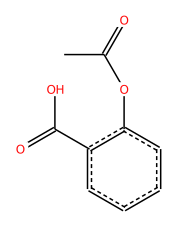
The tool opens with an aspirin example. To enter it yourself, paste:
CC(=O)Oc1ccccc1C(=O)O- Enter the SMILES and select Analyze.
- Check the benzene ring, carboxyl group, and ester linkage in the drawing.
- Select Download SVG.
- Rename
molecule.svgto a useful filename such asaspirin.svg.
The example below was generated from the same SMILES using the published Python package v1.1.2. You can also save this SVG file.
Insert it into PowerPoint
In PowerPoint for Microsoft 365 on Windows, use Insert → Pictures → This Device and select the SVG. On Mac, choose the file through Insert → Pictures. Microsoft’s official SVG guide describes the controls for each platform.
Keep the aspect ratio as you resize the image. Add the caption, then inspect atom labels and bonds at the scale used for the presentation. If you export a PDF for distribution, inspect that file as well to check the final layout.
Retain the drawing and its input together
Keep the compound ID shown in the caption and the original SMILES in a small CSV or research record. A row containing CMP003, aspirin, the SMILES above, and aspirin.svg gives you the input to return to when regenerating the figure.
For a panel of several structures, align their apparent bond lengths and label sizes before arranging them. The generation environment and file hashes for this example are recorded in the execution record.